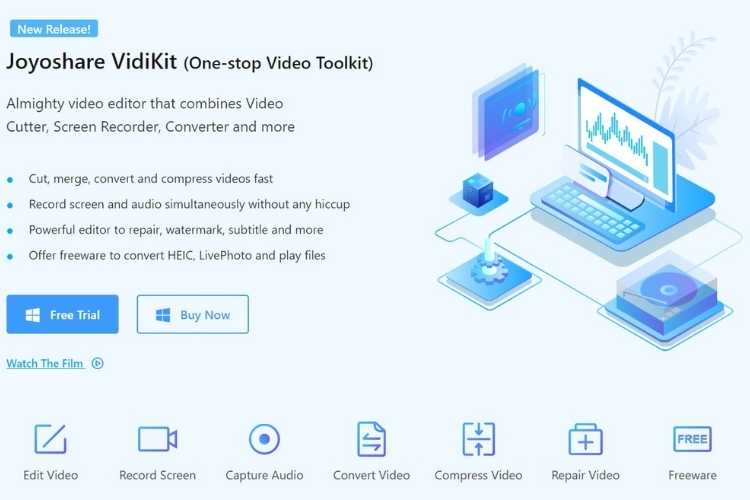

In our daily life, there are various situations when we need to screen record with audio such as Lecture recording, watching online live broadcasts, Recording any Training session for reference, etc. If you are looking for the best Screen recorder with system audio then your search will end on the Joyoshare VidiKit.
In this article we will discuss some amazing features of VidKit and how can you Record Screens with Audio with this amazing tool.
VidiKit – Perfect Screen recorder
VidiKit is a one-stop Video Toolkit that allows you various screen recording features. It is a perfect screen recorder windows 10 that also offer other amazing features such as cutting, merging, converting, and compressing videos faster. There are many apps that also offer screen recording with audio but after recording, you may experience uncleared sound not matched with the timing of the video. It is a very common issue in screen recording but VidiKit eliminates all these drawbacks and provides you perfect record screen with audio without a hiccup.
Let’s discuss the steps for Screen Record with System Audio.
Tutorial – Screen or Desktop record with VidiKit
VidiKit is one of the best and easier screen recorder windows 10 software that offers you advanced screen recording technology to record online chat, gameplay, live-streaming video, tutorial, webinar and many more. The best feature about VidiKit Screen recorder windows is that it allows you the option to select which audio tracks to record and in which format. You can choose from MP4, MKV, AVI, FLV, SWF, WMV, MP3, AAC, WAV, etc to save your video. Here are easy steps to screen record with VidiKit.
- First, you have to visit the VidiKit Video editor and install it on your Mac.
- After successful installation, click on it and open the “Screen recorder” program.
- Next, you can adjust the screen size for recording with the ‘+’ button on the left part under “Capture Area”.
- You can also select ration from 320*240, 640*480, 1280*720, full screen, etc.
- Next, you can see various icons in which you can adjust the audio for screen recording. You can easily customize the captured sound with the “options” button on the screen.
- Apart from it, you can also adjust output format, set Scheduled tasks, embed watermark, highlight, and cursor.
- After selecting all the options you want, you can start screen recording by clicking on the “REC” button on the screen.
- While recording, you can also take screenshots, cut videos, pause or even skip anything, you don’t want to record.
- As your recording is completed, it’s time to edit and manage the recorded video. For this, you can preview your file in ‘History’. You can make changes in the recorded video as per your preference.
Features of VidiKit- Why go for this Screen recorder
· Edit, trim or Merge videos without compromising the original quality
VidiKit, Screen recorder windows, allows you to edit, trim or merge any two recorded or other videos in their original quality. So now, the video editing and finishing are very easy with VidiKit. The best thing about this tool is that it offers you cutting files with high accuracy to milliseconds so that you can get 100% results as per your desire. This tool works at 60X amazing speed
· Add watermark as per your preference
VidiKit the perfect sound recorder allows you to add a watermark as per your requirement. You can also add custom text and image watermark with the use of VidiKit.
· No Hiccups of music while recording
VidiKit, the best tool for desktop record, allows you to record the screen in 1080p/4k at 60fps with no lag. There is no limit for screen recording in VidiKit. Even you can also go for ultiple and Flexible screen recording modes. You can also schedule your recording time, highlight the cursor and show clicks. There is also an option to get sound from any computer system or microphone.
· Record any music you want
VidiKit allows you to record various types of sounds from different sources. You can easily recognize and fix ID3 tags for audio recordings. To get a professional video, you can use its various apps to adjust and manage audio as per requirement. You can also add various sound effects to your file. VidiKit supports 16 kinds Output formats.
Other features
- Convert 150+ formats into High Efficiency
- Reduce size by video compression
- Fantastic Freeware
- User-friendly
- Free lifetime Upgrade
- 100% secure
- Free tech support
- Full Compatibility
- Free trial
The Bottom line
If you are looking for the best Screen recorder with system audio, VidiKit is one of the best and easier software that screen record with audio to record online chat, gameplay, live-streaming video, tutorial, webinar and many more.