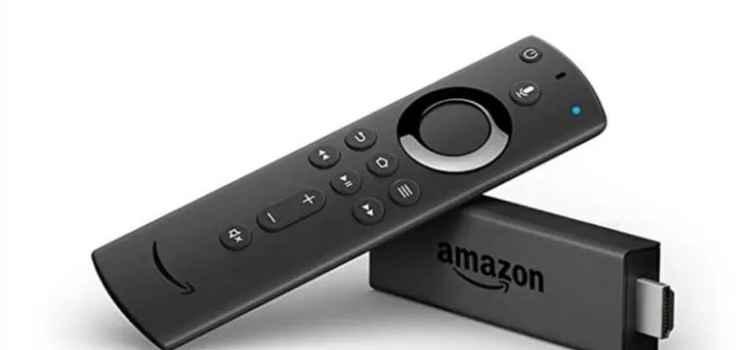

The Amazon FireStick is a streaming media gadget that allows you to watch your favorite TV shows, movies, and photos, among other things.
You may use this device to store all your favorite entertainment and carry it with you wherever you go. While the device may be extremely handy, it sometimes stops working suddenly. Among the most typical problems that users have with their device are FireStick stalling, app-related failures, crashes, audio or visual problems, a blank screen, etc.
Most of these issues may be resolved by just restarting the Amazon Firestick device. It is usually a remedy for most common difficulties and requires you to unplug and re-plug a power cord to make it function again.
There are instances when a simple reset will not fix the issue, and you will need to seek additional methods. And with that, let us scroll on some of the other problems and how to address them.
Basic Troubleshooting Tips for your FireStick
Before we get into specific troubleshooting advice, we recommend that you try these quick tips if you’re having difficulties streaming from your Amazon Fire Stick device.
- Assess your Wi-Fi connection. If your network is having difficulties due to external factors, such as network congestion during peak hours, you may need to consider upgrading to a faster connection.
- Power cycling fixes many issues on many devices. Try unplugging and rejoining your Wi-Fi router for 10–15 seconds.
- Log out and then log in back into your Amazon Fire Stick account.
- Reboot your Amazon Fire Stick gadget.
Internet Connection Issues
Most of the time, your programs don’t appear on the Amazon Fire interface when using the FireStick due to an internet issue, a power outage, or a password mismatch, among other things.
If your Wi-Fi isn’t functioning, check to see if you’re connected by going to the Fire TV Home Screen > Settings > Network.
For a network with failed connection, double-check that you’re using the correct password. If your Wi-Fi network does not display at all, ensure that your Fire TV Stick is in range and that no other devices are experiencing the same problem.
If all seemed fine, you should check whether there is any interference between the Wi-Fi signal and the Amazon Firestick device, which might entail a structural obstruction.
Shall the internet connection problem persist, a fast reboot of your Wi-Fi router should do the trick. Restart your router, wait 10–15 seconds, and then reconnect it.
Unresponsive FireStick Remote
If the remote connection with the device is incorrect, the FireStick buttons will not respond. To pair it again, hold down the Home button on your remote for 5 to 10 seconds. If the issue continues, you will need to reset the remote and re-pair it with the device. Another reason may be the low battery charge of the remote.
The Amazon FireStick Remote uses a lot of battery power. If your FireStick isn’t responding, the remote batteries may be in low charge. Note that the battery depletes without any notice to the user. One of the best solutions is to use a high-quality alkaline battery and keep a backup on hand.
Crashing Apps or Programs
A functional Fire TV Stick is impressive, but it is useless without your favorite video streaming programs. Another issue with Amazon FireStick is that some applications don’t operate or crash. In certain instances, the case is connected to the device’s memory.
If you have too many applications open and a couple of them are still operating in the background, your device’s RAM may have become overloaded. The best option is to disconnect the device and the USB cable, wait 10–15 seconds, and then plug them back in.
This workaround restarts the device and stops any other programs, allowing your Firestick’s memory to start afresh. If your application keeps crashing or refuses to launch, then try to clear the app cache. To do this, go to your Fire TV Home Screen > Settings > Applications > Manage Installed Applications > select the app that is having problems > Click Clear Cache or Clear Data.
If emptying the app cache and data does not resolve your issue, try reinstalling the app.
Unable to Mirror your Device on Fire TV
You can easily share the material on your smartphone or tablet’s screen with your Fire TV Stick with a few clicks. However, if the system isn’t functioning, make sure you’re running the latest operating system for your device. If your Fire TV Stick enables screen-sharing, a mirroring symbol should show when you hold down the Home button. If your smartphone or tablet cannot recognize the Fire TV Stick, make sure they are all on the same connection and within 30 feet of range (10 meters).
Stuck FireStick Logo
You ordered a Fire TV Stick to enjoy your favorite content, not the logo! If you see the logo on your television screen, your gadget is most likely stuck. Unplug the Fire TV Stick from the TV and its power supply, then connect it and try again. If the problem persists, make sure the supply voltage you’re using is powerful enough to power the Fire TV. Lastly, try a new HDMI port on your television, since the one you’re using may be causing the problem.
Blank Screen on your Fire TV
Worse than having to deal with a boot logo is having to deal with nothing. If your television displays nothing but a blank screen, try disconnecting your Fire TV Stick and then plugging it back in. Also, make sure your television is connected to the proper HDMI input for your Fire TV Stick.
If you’re using an HDMI cord or extension, connect the Fire TV Stick straight to the TV to check if it’s the source of the problem. Whether you’re using an A/V receiver, make sure you’re on the right input or connect the Fire TV Stick directly into the tv to see whether the receiver is the issue. If your FireStick is still not operating, the motherboard may be defective and needs repair. Do this as a last resort and have it done by experts and professionals.
VPN Issues
If you use a VPN on your network or even the Fire Stick, bear in mind that issues might occur. The most common problem is that the VPN you’re using is incompatible with the Fire Stick or that Amazon has blocked it and won’t let you use it. The simplest option here is to disable the VPN and see whether the problems disappear. You might want to try a different VPN that works with your Amazon FireStick if you need another one.
Reset Your FireStick
If the techniques and tips above do not resolve your problem, you can opt to reset your device entirely. It is essential to remember that resetting your device will erase any settings and customization, restoring it to its default program. To reset your Fire TV Stick, go to Fire TV Home Screen > Settings > System > click Reset to Factory Defaults. Enter your PIN if prompted and select Reset.
Listed above are the techniques you can use if you have troubleshooting problems with your FireStick. If you still have technical difficulties with your Fire TV Stick device, you might want jailbreak your FireStick, which is an effective and long-term solution. Go to Fire Stick Tricks website for more info. Moreover, if the hardware in your gadget is faulty, they may repair it for you if the original warranty still covers you