
We have all been there: a delivery driver is calling you for the third time because they are lost two streets over, or friends are circling your neighborhood trying to find your front door. Getting your home on Google Maps solves this instantly.
But before you start dropping pins, there is a crucial rule you need to know: Google Maps does not allow private residences to be added as public landmarks. If you try to add “John’s House” as a public place, Google’s review algorithm will almost certainly reject it as spam.
However, depending on what you are actually trying to achieve, there are three legal, Google-approved ways to get your home on the map. Here is your complete guide to doing it right so your edits actually get approved.
1. How to Add a Missing Address (For Deliveries & Cabs)
If your main goal is simply to make sure your street address (e.g., “123 Maple Street”) exists on the map so Uber, Swiggy, or Amazon can find you, you need to use the Add a missing place tool. This makes the physical address public and searchable, without attaching a personal name to it.
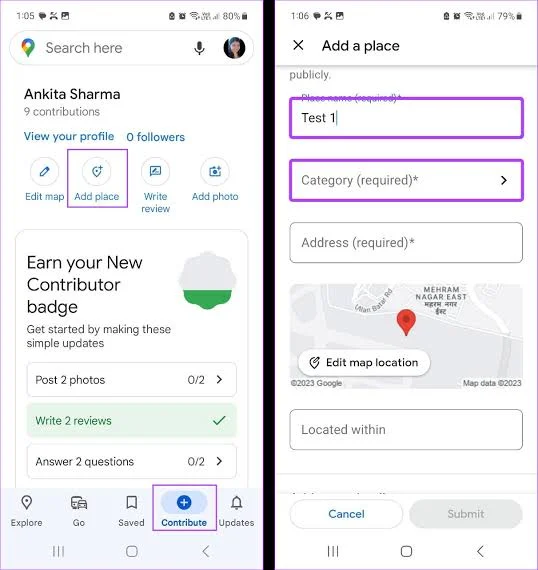
1.Open the Contribute tab:
Launch the Google Maps app on your phone and tap the Contribute button (the + icon) at the bottom of the screen.
2.Select ‘Add place’ or ‘Edit map’:
Tap Add place. If you are just fixing a pin that is slightly off, you can tap Edit map and choose Add or fix an address.
3.Enter your exact details:
Fill in your complete street address. For the category, select Residential Building or Housing Society (do not select a business category).
4.Drop the pin accurately:
Tap Edit map location. Zoom in as far as the app allows and move the map so the red pin sits exactly over the roof of your house, not out in the street.
5.Submit for review:
Tap Submit. Google will send you an email confirming your edit is under review.
Expert Tip: To get your address approved faster, make sure you are physically standing at the location when you submit the edit. Google checks your GPS data to verify the submission is legitimate.
2. Naming Your House (The “Villa” or “Bhavan” Exception)
While Google rejects names like “Rahul’s House,” they are much more lenient if your house has an official, recognized name—such as “Shanti Niwas,” “Rosewood Villa,” or a specific apartment complex name. This is especially common in countries like India and the UK.
If your home has a genuine, permanent nameplate outside:
- Follow the exact same steps in the section above.
- In the Name field, enter the formal house name (e.g., “The Heritage Villa”).
- Crucial step: Before submitting, tap Add photos and take a clear picture of the permanent nameplate on your gate or wall. Without photographic proof, Google will likely flag the name as a private residence and reject it.
Also Read : – How to Enable RCS on iPhone: The New Messaging Upgrade Apple Finally Adopted
3. How to Add a Home-Based Business Publicly
If you run a bakery, a consulting firm, or a freelance business out of your home and want customers to find you by your business name, you cannot use the standard Google Maps app. You must register through a different system called Google Business Profile.
1.Go to Google Business:
Open a web browser and visit google.com/business, then click Manage now.
2.Enter your business details:
Sign in with your Google account, enter your business name, and select your correct industry category.
3.Choose your location settings:
When asked “Do you want to add a location customers can visit?”, select Yes ONLY if clients actually come inside your home. If you just deliver items or work online from home, select No (Google will still register your service area, but will hide your exact street address for safety).
4.Verify your business:
Google requires proof that you actually operate there. They will either mail a postcard with a PIN code to your home (which takes up to 14 days) or ask you to record a short video showing your workspace and street signs.
Once verified, your business will show up publicly on Google Maps, complete with reviews, photos, and operating hours.
Why Did Google Maps Reject My Edit?
If you received an email saying your edit was “Not Applied,” it is usually due to one of three reasons:
- Spam Filters: You included personal names (like your first name) in the title.
- Lack of Data: Google’s Street View cars haven’t driven down your road yet, so their AI cannot verify that a house actually exists at the coordinates you provided.
- Pin Placement: You placed the pin in the middle of the road or overlapping a neighbor’s property. Always place it dead-center on your own roof.
If your edit is rejected, wait a week, take a photo of your house showing the house number, and try submitting it one more time with the photo attached.