

Greetings, fellow geolocation enthusiasts! Tired of feeling lost in the vast digital world? Do you want to ensure that your website is accessible to users across the globe? Well, fear not, for Selenium and geolocation testing are here to save the day!
So, grab your Selenium toolkit and get ready to take a journey to the four corners of the earth (or at least, the four corners of the internet). Together, we’ll explore the ins and outs of geolocation testing and discover the joys of “geotesting” (yes, that’s a word now). So let’s get started!
What is Geolocation Testing?
Before we talk about the nitty-gritty of how to perform geolocation testing with Selenium, let’s address the elephant in the room: what the heck is geolocation testing, anyway? Simply put, it’s the process of testing whether your website functions correctly in different locations around the world. And with the surge in remote work and global commerce, it’s more important than ever to make sure your website is geolocation-friendly.
Geolocation testing is like being a GPS navigator for your website or app. You need to make sure that it knows where it’s going and doesn’t end up taking you to the middle of nowhere. It’s like testing if your app has a good sense of direction or if it’s lost in translation!
Geolocation testing is important because it ensures that your app can accurately track the user’s location and provide relevant information or services based on that. For example, if you have a travel app, you want to make sure that it can accurately pinpoint the user’s location and suggest nearby attractions or accommodations.
Similarly, if you have a weather app, you want to make sure that it can accurately display the weather for the user’s current location.
What Can You Test By Incorporating Geolocation Browser Testing?
1. Geotargeting To Evaluate SERP(Search Engine Result Pages)
Geotargeting helps you evaluate how your website performs on different search engine result pages based on the user’s location. It is important to see whether your website ranks at the top of the search results or not. Maybe your website is ruling the search results in the USA, but when it comes to Germany, it’s struggling to stay afloat. Geotargeting helps you identify such scenarios and take necessary actions to optimize your website for specific locations.
2. Geofencing To Drive Personalized Notifications
Geofencing is like a digital fence that helps you track a user’s movement within a certain location. With geofencing, you can send personalized notifications to your users. Imagine a user walking down the street, craving a coffee, and they receive a notification on their phone, “Hey, get 20% off on coffee at the nearest Starbucks.” Geofencing helps you send such targeted notifications to your users, improving their experience and ultimately benefiting your business.
3. Geotagging For Identifying Geospatial Metadata
Geotagging helps you tag a specific location to the metadata of your website. It provides additional information about the location of the content on your website. For instance, if you run a travel blog and write an article about a popular tourist spot, geotagging helps users identify the exact location of that spot. This additional information can help users plan their trip better, making them return to your website for more travel tips.
4. Geo-blocking To Display Content According To Country Laws
Geo-blocking is the process of limiting access to your website based on the user’s location. It is mostly used to comply with specific country laws. For example, if your website provides gambling services, you might need to block users from countries where gambling is illegal. Geo-blocking helps you comply with such laws and avoid any legal trouble.
5. Localization For Adapting To Specific Locale
Localization is the process of shifting your website content to a specific locale or region. It involves translating your website’s content into a different language, adapting to local customs and traditions, and even changing the layout of the website to cater to a specific region’s preferences.
How to Perform Geolocation Testing with Selenium 4 On Cloud-based Selenium Grid
With LambdaTest’s Selenium Grid, you can execute automation testing across 3000+ combinations of browsers and operating systems. And unlike Geolocation testing on a local Selenium grid, which is limited to Geolocation coordinates, LambdaTest takes it to the next level with browser compatibility testing across different countries in the world. That’s right – you can test your website or web app across 53 different countries!
LambdaTest’s Geolocation feature is now available in Desired Capabilities Generator, bringing some serious pizzazz to your cross-browser testing game.
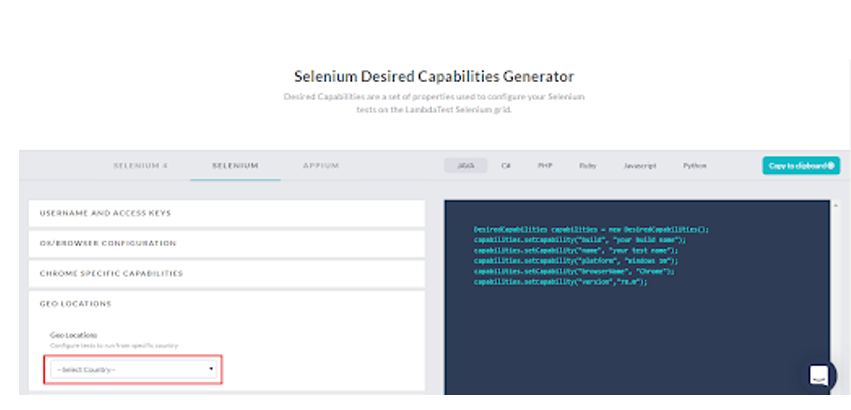
You can now easily automate your browser compatibility testing experience from different countries around the world, thanks to the drop-down for Geolocation that’s available under both the Selenium and Selenium 4 tabs. Simply choose your desired country from the list, and voila! You’ll notice an added capability on the right side inside the Desired Capabilities class provided by LambdaTest Capabilities Generator.
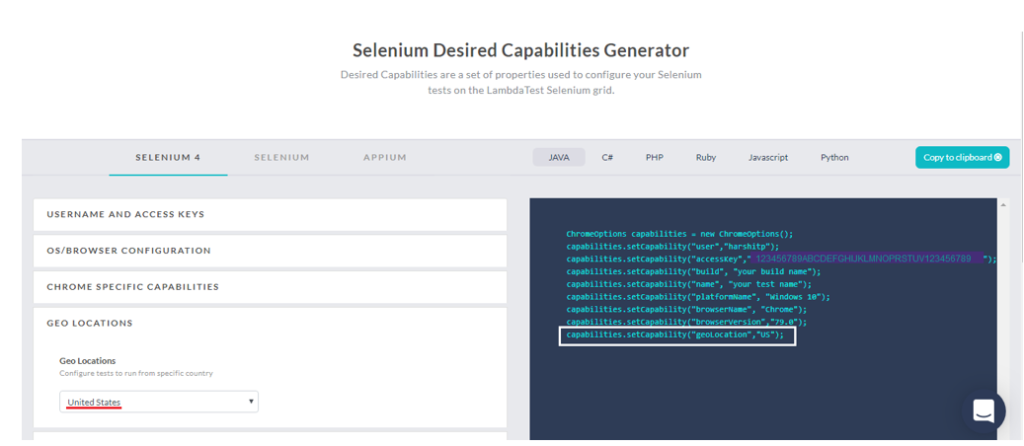
And the best part? You don’t have to rely on just coordinates to test different locations. LambdaTest offers a drop-down menu for geolocation testing, making it easier and more fun to explore the digital landscape of different countries. Plus, with real-time testing on the platform, you can see your results in action and make adjustments on the fly.
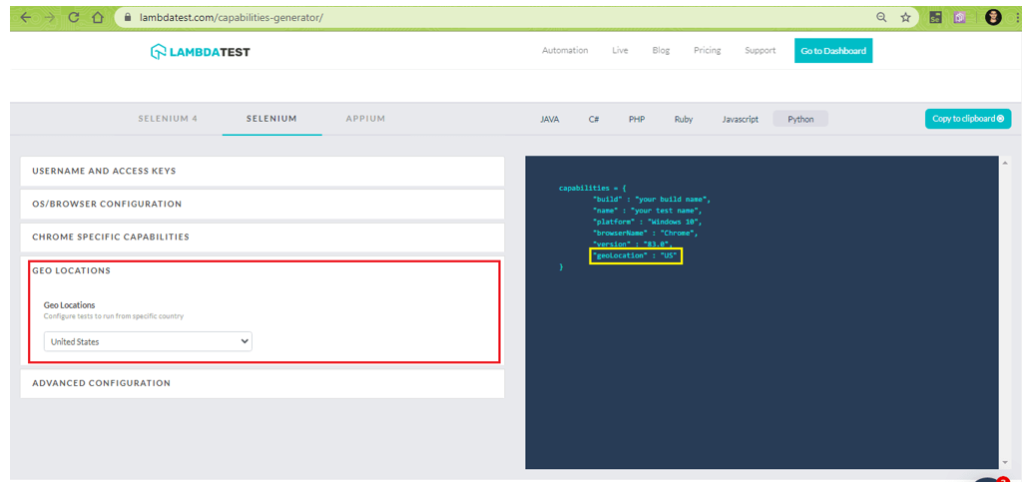
Add Geolocation Testing to Your Selenium Scripts with Desired Capabilities
Ready to add some spice to your Selenium automation scripts and navigate through different countries? Then let us show you how to use LambdaTest’s Desired Capabilities Generator to add geolocation capabilities to your code. It’s as easy as swashbuckling on the high seas!
Whether you’re a Java jester, a Python parrot, or a JavaScript juggler, we’ve got you covered. Simply select your programming language, choose the geolocation country from our drop-down list, and voila! You’ll get the line of code to add to your script faster than you can say, “Shiver me timbers!”
- Java
DesiredCapabilities capabilities = new DesiredCapabilities();
capabilities.setCapability(“geoLocation”,”US”);
- C#
DesiredCapabilities capabilities = new DesiredCapabilities();
capabilities.SetCapability(“geoLocation”, “US”);
- PHP
$capabilities = array(
“geoLocation” => “US”
)
- Ruby
capabilities = Selenium::WebDriver::Remote::Capabilities.new
capabilities[“geoLocation”] = “US”
- JavaScript
var capabilities = {
“geoLocation”: “US”
}
- Python
capabilities = {
“geoLocation”: “US”
}
How to perform geolocation testing with Selenium
To perform geolocation testing with Selenium, you’ll need to use the Desired Capabilities class. This class allows you to specify the capabilities that your test script requires, such as the browser type, version, and operating system. With LambdaTest, you can also specify the Geolocation of the browser using the “geoLocation” capability.
Below is an example of how to set up the Desired Capabilities for Geolocation testing in Java:
DesiredCapabilities capabilities = new DesiredCapabilities();
capabilities.setCapability(“browserName”, “Chrome”);
capabilities.setCapability(“version”, “latest”);
capabilities.setCapability(“platform”, “Windows 10”);
capabilities.setCapability(“geoLocation”, “US”);
In this example, we’re specifying that we want to test our web application on the latest version of Chrome on Windows 10, with a geolocation of the United States.
Once you’ve set up the Desired Capabilities, you can use Selenium to automate your test script and execute it on the LambdaTest platform. You’ll be able to see the results of your geolocation testing in real-time and even take screenshots to verify that your web application is working properly in different countries.
Here is an example code for geolocation testing with Selenium in Java:
import org.openqa.selenium.WebDriver;
import org.openqa.selenium.chrome.ChromeDriver;
import org.openqa.selenium.chrome.ChromeOptions;
public class GeolocationTest {
public static void main(String[] args) {
// Setting ChromeDriver location
System.setProperty(“webdriver.chrome.driver”, “path/to/chromedriver”);
// Creating an object of ChromeOptions
ChromeOptions options = new ChromeOptions();
// Setting Geolocation
options.addArguments(“–enable-geolocation”, “–disable-popup-blocking”);
// Creating an object of WebDriver
WebDriver driver = new ChromeDriver(options);
// Launching the website
driver.get(“https://www.google.com/maps”);
// Verifying the location
String latitude = driver.executeScript(“return navigator.geolocation.getCurrentPosition(function(position) {return position.coords.latitude;});”).toString();
String longitude = driver.executeScript(“return navigator.geolocation.getCurrentPosition(function(position) {return position.coords.longitude;});”).toString();
System.out.println(“Current location: ” + latitude + “, ” + longitude);
// Closing the browser
driver.quit();
}
}
This code sets the location using ChromeOptions and verifies the location using JavaScript executor. Make sure to change the path to your ChromeDriver location.
But what if you don’t see the country you’re looking for in the geolocation drop-down menu? LambdaTest’s customer chat support is available 24/7, so feel free to reach out anytime. You can also shoot an email to support@lambdatest.com and let them know which country you’d like them to add to their geolocation testing options, and they’ll add it for you in no time.
Executing Localhost and Geolocation Testing Simultaneously with Parallel Testing in LambdaTest
Looks like you’re interested in executing cross-browser testing of your web application using both Localhost and geolocations simultaneously. Great choice! At LambdaTest, we have got you covered.
But first, let us explain a couple of things. As mentioned earlier, you cannot perform geolocation testing and local testing of web applications at the same time for a single Selenium automation test case execution. This is because they require different capabilities to be set up in the Desired Capabilities class.
However, don’t let that bring you down. You can still achieve both requirements simultaneously by using the power of parallel testing. By opting for parallel testing, you can execute both requirements independently at the same time.
Here’s an example to make it easier for you to understand:
Suppose you have a web application that is hosted locally, and you want to perform geolocation testing simultaneously. You can do this by setting up two different automation test cases.
In the first test case, you can set up the Desired Capabilities for local testing and execute it using LambdaTest Tunnel. In the second test case, you can set up the Desired Capabilities for geolocation testing and execute it using LambdaTest real-time testing.
Now, you can execute both test cases simultaneously using parallel testing. This way, you can achieve both requirements independently at the same time.
Not only does this save you time, but it also makes your cross-browser testing experience more efficient and effective. With LambdaTest, you can perform parallel testing across 2000+ real browsers and operating systems, making your testing experience hassle-free and enjoyable.
So whether you’re testing for the US or exploring the digital landscape of another country, LambdaTest has got you covered. Sign up today and start exploring the enormous world of geolocation testing like a pro!
Wrap-up
Alright, let’s wrap up the topic of Geolocation testing with Selenium. Geolocation testing with Selenium can be a valuable tool for ensuring that your web application is delivering a top-notch user experience for users across the globe.
Remember, geolocation testing is just one piece of the puzzle when it comes to cross-browser testing and ensuring that your web application is ready for prime time. By incorporating geolocation testing into your overall testing strategy, you can gain valuable insights into how your application performs in different parts of the world and make informed decisions about how to improve your user experience.
So, get out there and start incorporating geolocation testing into your Selenium scripts. Who knows? You might just discover some hidden bugs or opportunities to optimize your application for users in different parts of the world.